
Note: Audit user cannot publish content without approval. His supervisor does not need to be a JTECH CMS user.
How to Set Up an Audit User
When you create a user as an audit user (using the Admin tool for managing user) you should set a supervisor (by his email address).
All you need to do is to turn on the “Audit User” radio button. Once you do it, a “Supervisor” text box will appear. You need to fill the supervisor’s email.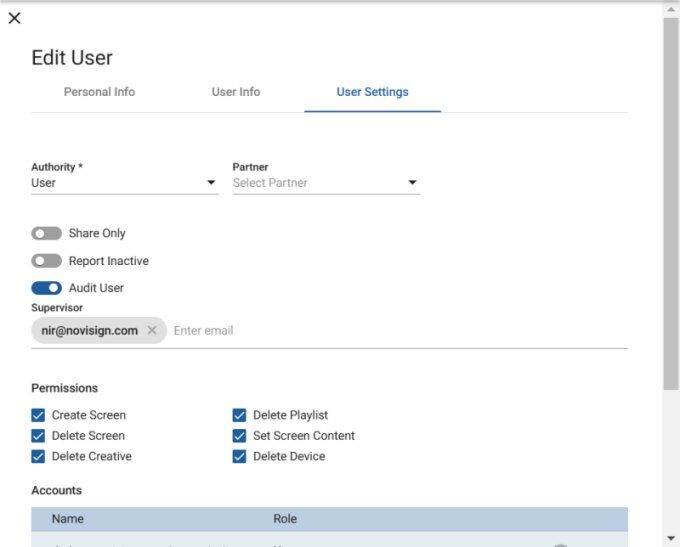
Submitting Creatives for Approval
Every creative which the audit user will submit for approval (except the “Save” button, he will also see a “Submit” button) will have to go through a review by the supervisor. That means if John Smith is an audit user and just saved a creative called “My Creative” then an approval email will be sent to his defined supervisor.
The supervisor can approve or reject this version of the creative (he actually gets a link to view the creative by the email he got). If he approves the creative, then the audit user will see that his creative is ready and not pending anymore. Also, when the supervisor rejects that creative – the audit user will have to revise it before next submission to approval.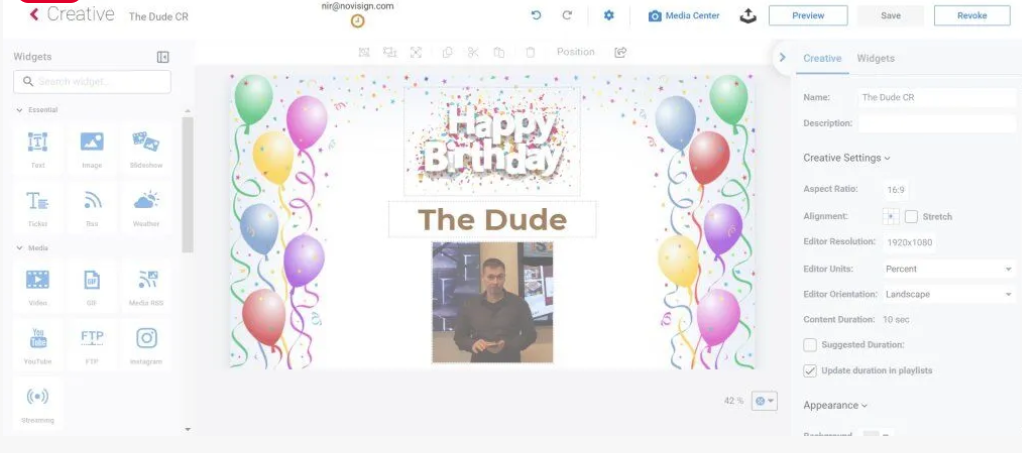
Once the creative is approved, the audit user will be able to use it in his playlists and screens.
Audit User Interaction Flow
When an audit user logs in, everything looks the same. However once he adds a simple creative or a compose creative, then after some saving it a few times, he needs to submit it for approval. When he presses the “Submit” button (either inside the Creative Composer for a composed creative or in edit mode of a simple creative), the supervisor will get an email for approval. By then, the creative won’t be editable anymore (either until approval/disapproval or until the user revokes the submitted changes).
After submitting a creative for approval, the “Submit button” will be replaced with a “Revoke” button, which means the audit user can revoke the changes and then keep working on the creative.
Then the creative will have a little orange clock icon, which means it is pending for approval.