When to Use This Troubleshooting Guide
There may be cases where a user does not see the expected behavior in SmartCall Messenger, such as:
-
Adding a patient to the waiting list
-
Sending a message
-
Moving a patient between departments
-
Or other normal system actions
In some situations, we may confirm from our side that everything is working correctly, but the user continues to experience the issue.
When this happens, it is usually related to the browser (stored data, cache, or extensions), not the system itself. In these cases, please follow the troubleshooting steps below to help identify and resolve the issue.
Step 1 – Try Incognito Mode (Recommended First Step)
This helps check if the issue is related to your browser settings, cache, or extensions.
What is Incognito Mode?
Incognito opens the browser without saved data, cookies, or extensions. It is a “clean session” to test the system.
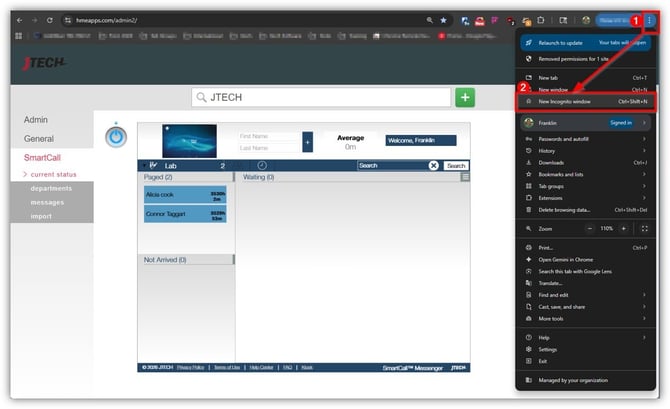
How to open Incognito in Chrome:
- Click the three dots (⋮) in the top right corner
- Click “New Incognito window”
How to open Incognito in Edge:
- Click the three dots (⋮) in the top right corner
- Click “New InPrivate window”
Then log into the system and test the issue. If the system works in Incognito, the issue is likely related to your browser settings.
Step 2 – Hard Refresh the Page
This forces the browser to reload everything from the server and ignore stored data.
How to do it:
- Press Ctrl + F5 on your keyboard. Then test the issue again.
Step 3 – Try a Different Browser (Microsoft Edge)
If you are using Chrome:
- Open Microsoft Edge
- Go to the system (SCM or HC)
- Log in and test the issue
If it works in Edge, the issue is likely with Chrome. Please proceed to Step 4.
If you are using Microsoft Edge:
- Open Google Chrome
- Go to the system (SCM or HC)
- Log in and test the issue
If it works in Chrome, the issue is likely related to Edge. Please proceed to Step 4.
Step 4 – Reset Browser (Only if needed)
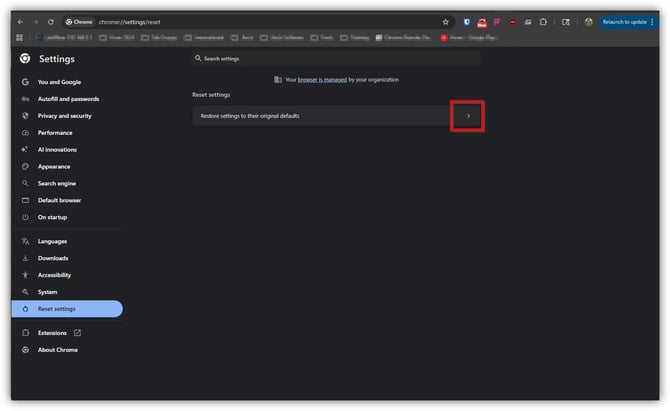
If the issue only happens in Chrome, follow these steps to reset Google Chrome:
- Open Chrome
- In the address bar, type:
chrome://settings/reset - Press Enter
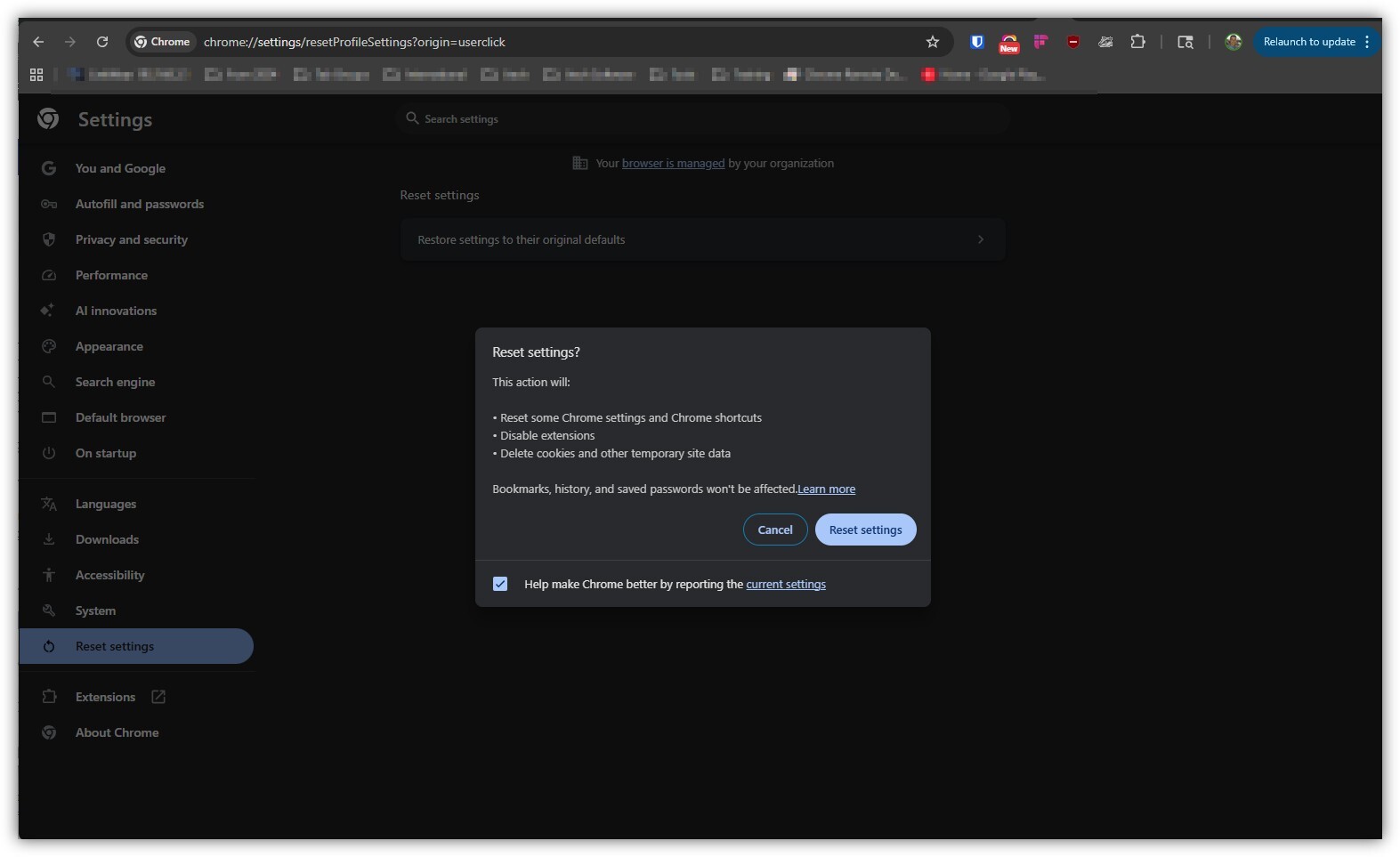
- Click “Restore settings to their original defaults”
If the issue only happens in Microsoft Edge, follow these steps to reset Edge:
- Open Edge
- In the address bar, type:
edge://settings/reset - Press Enter
- Click “Restore settings to their default values”
What this does:
- Resets browser settings
- Disables extensions
- Clears temporary configurations
What it does NOT do:
- Does NOT delete bookmarks
- Does NOT delete saved passwords
Important
If the issue continues after all steps:
- Take a screenshot
- Describe what you were doing
- Report the issue to support