
What Can You Schedule?
You can schedule:
-
A creative within a playlist (to run in a specific date range and/or run in specific times and/or run on specific days of the week)
-
A playlist within a screen (each screen can hold multiple playlists)
Examples:
-
Show one playlist on weekdays and another on weekends.
-
Play a daytime creative during business hours and a nighttime creative after-hours as a screensaver.
To explore even more options, check out our Enhanced Scheduling UI.
How to Schedule a Creative
-
Open a playlist in Edit Mode.
-
Hover over a creative thumbnail.
-
Clicking the calendar icon (datetime picker) on the top corner of the creative will allow you to schedule it.
-
A scheduling window will appear where you can set:
-
Start and end dates
-
Times
-
-
Days of the week
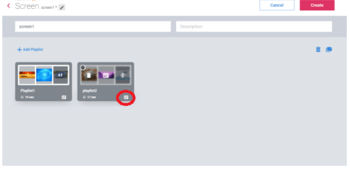
Once scheduled, the icon will show a small clock overlay. If the creative isn’t currently set to play, it will be marked as “Expired.”
How to Schedule a Playlist
-
Open a screen in Edit Mode.
-
Hover over a playlist thumbnail.
-
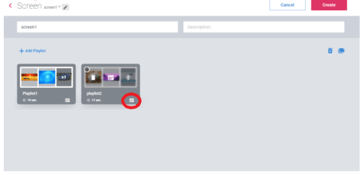
Click the calendar icon (datetime picker) on the top corner of the playlist.
-
Choose your desired schedule settings.
Playlist scheduling works the same way as creative scheduling\
Important: Playlist vs. Creative Priority
If both a playlist and a creative inside it are scheduled:
-
The playlist schedule takes priority, since it is in a higher hierarchy.
-
For example: If a creative is set to play Monday morning, but the playlist is only scheduled for weekends, the creative won’t play on Monday.
-